It allows you to create a Payin. Confirmation about payin status will come via callback to the URL specified by merchant during authorization phase.
| Time | Status | User Agent | |
|---|---|---|---|
Retrieving recent requests… | |||
How to test in Chile?
- Create a session by sending a request: Below are the required parameters, and on the right, you can dynamically see how the request looks. Additionally, you need to enter the authentication token. Make sure the country matches the selected currency. After that, you can proceed to click on Try It!
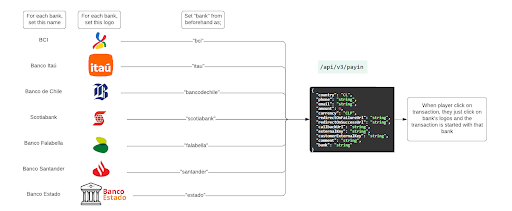
How to enable bank buttonsTo enable this flow, just set the “bank” parameter with the desired bank.
Set one bank alongside its respective logo, and then replicate the same setup with different bank parameters. You have the flexibility to include all desired banks or a selection. To ensure customers have access to the full range of banks, incorporate a separate button featuring Cleo's logo without utilizing the 'bank' parameter.
See the example for the Chilean market
- Receiving the callback: As a response, if the request was successful, you will receive a response like the following:
{
"status": "PENDING",
"url":"[https://transfer.staging.cleo.cl/fintoc-widget?session_id=bb215e25-909b-4c09-bfd3-6f1f](https://transfer.staging.cleo.cl/fintoc-widget?session_id=bb215e25-909b-4c09-bfd3-6f1f)",
"sessionId": "bb215e25-909b-4c09-bfd3-6f1f29b657bb"
}
-
Entering the test session: Copy the received URL and paste it into your browser. You’ll be redirected to the user’s flow:
3.1. Choose any of these 3 banks: Banco Estado / Banco de Chile / Banco BCI
Use RUT 11111111-1 and this password: 12343.2. Click on "Continuar"
3.3. Click on "Continuar"
3.4. If you see a message "Ingresa los valores de tu tarjeta de coordenadas", use this
combination: 12 34 56 -
Done: After following these steps, the transaction will be a SUCCESS.
How to test in Peru?
- Create a session by sending a request: Below are the required parameters, and on the right, you can dynamically see how the request looks. Additionally, you need to enter the authentication token. Make sure the country matches the selected currency. After that, you can proceed to click on Try It!
RememberTo test in Peru, you should use the following data:
customerDocumentId: 12345678customerDocumentType: dni
- Receiving the callback: As a response, if the request was successful, you will receive a response like the following:
{
"status": "PENDING",
"url": "[https://cleopagos.com?id=e5b45ad4-a47c-4278-81a7-4d2483dc8593](https://cleopagos.com?id=e5b45ad4-a47c-4278-81a7-4d2483dc8593)",
"sessionId": "3c3cac16-1fb9-4a85-b798-d70224983679"
}
-
Entering the test session: Copy the received URL and paste it into your browser. You’ll be redirected to the user’s flow:
-
Done: After following these steps, the transaction will be a SUCCESS.
How to test in Mexico?
- Create a session by sending a request: Below are the required parameters, and on the right, you can dynamically see how the request looks. Additionally, you need to enter the authentication token. Make sure the country matches the selected currency. After that, you can proceed to click on Try It!
- Receiving the callback: As a response, if the request was successful, you will receive a response like the following:
{
"status": "PENDING",
"url":"[https://qt-sandbox.etpay.com/session/MG4PV5VOeIpaR9yryTeT9SGuH5pUkb3zXSTFaBR2Ukkn7pF3zdcwxdELjzwzUv3S](https://qt-sandbox.etpay.com/session/MG4PV5VOeIpaR9yryTeT9SGuH5pUkb3zXSTFaBR2Ukkn7pF3zdcwxdELjzwzUv3S)",
"sessionId": "c1f42966-2584-4eb3-8f89-b567ce425a52"
}
- Entering the test session: Copy the received URL and paste it into your browser. You’ll be redirected to the following site:
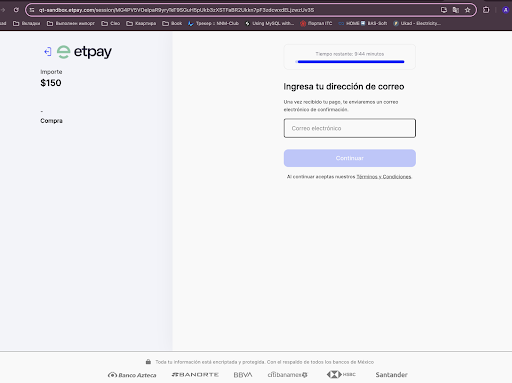
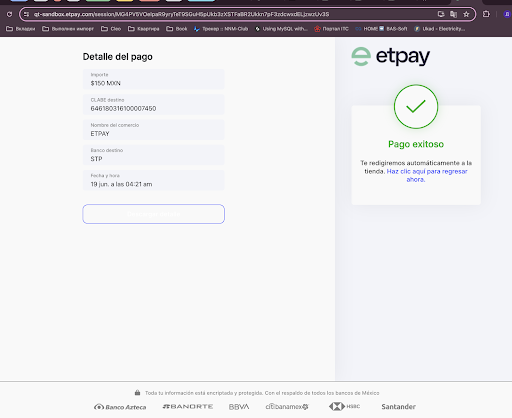
- Make the test payment: Complete the field with the following email: [email protected] and click on ‘Continuar’. You will see the following screen:
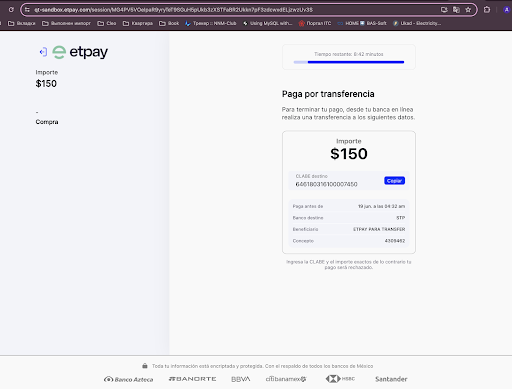
- Done: After following these steps, wait a few minutes and the transaction will be a SUCCESS. You will see this screen: